
Introduction
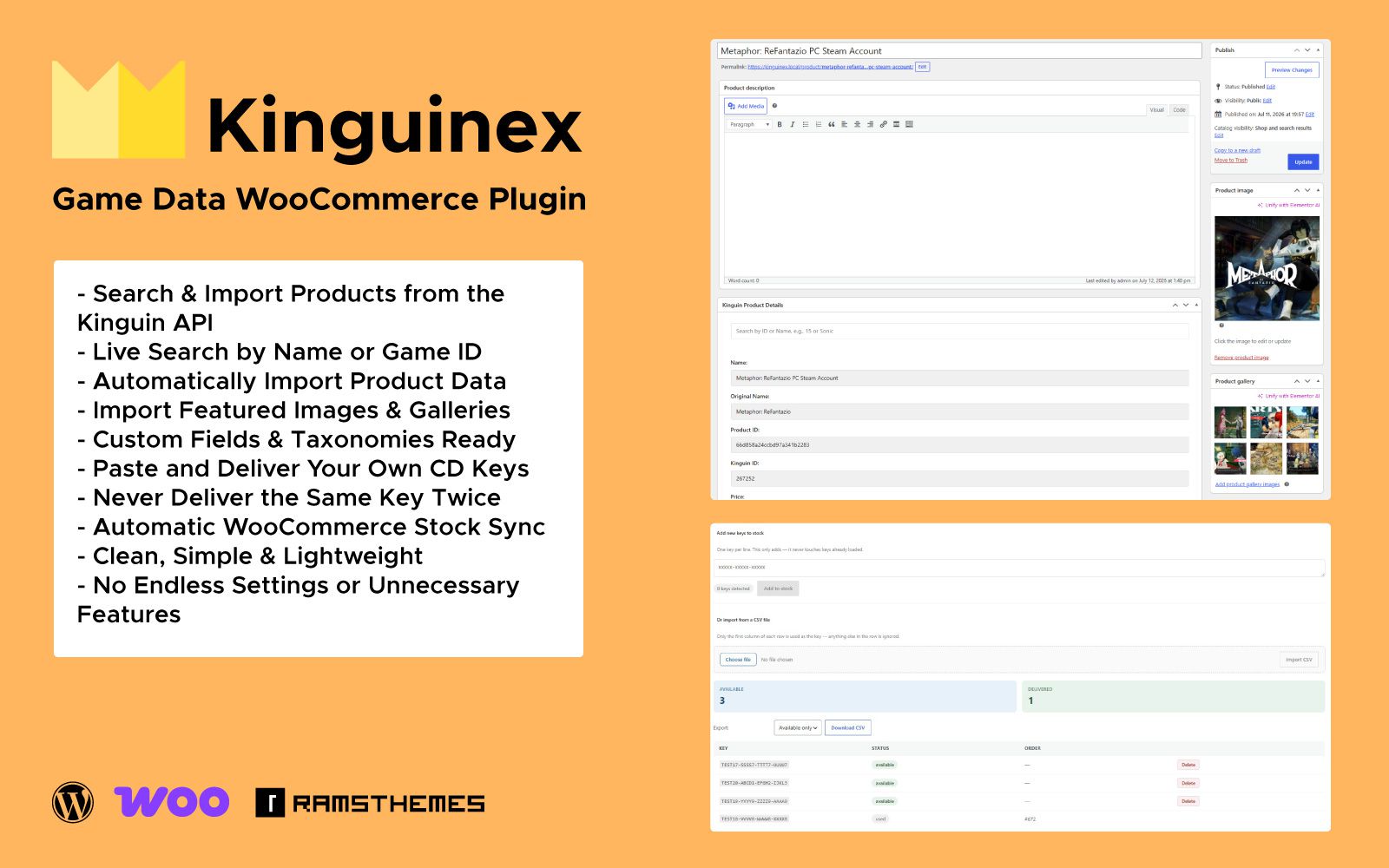
We are deeply grateful for your choice of the KINGUINEX plugin. Your support means the world to us, and we sincerely hope you find joy and value in using our plugin.
Requeriments
- WordPress installation
- PHP 7.4+
- WooCommerce Plugin installed
- Basic Knowledge of WordPress (create posts, upload images, install plugins, fill fields, etc.)
Support questions will only be answered by verified customers. License Key is mandatory to get plugin updates.
Installation
Install via WordPress Dashboard
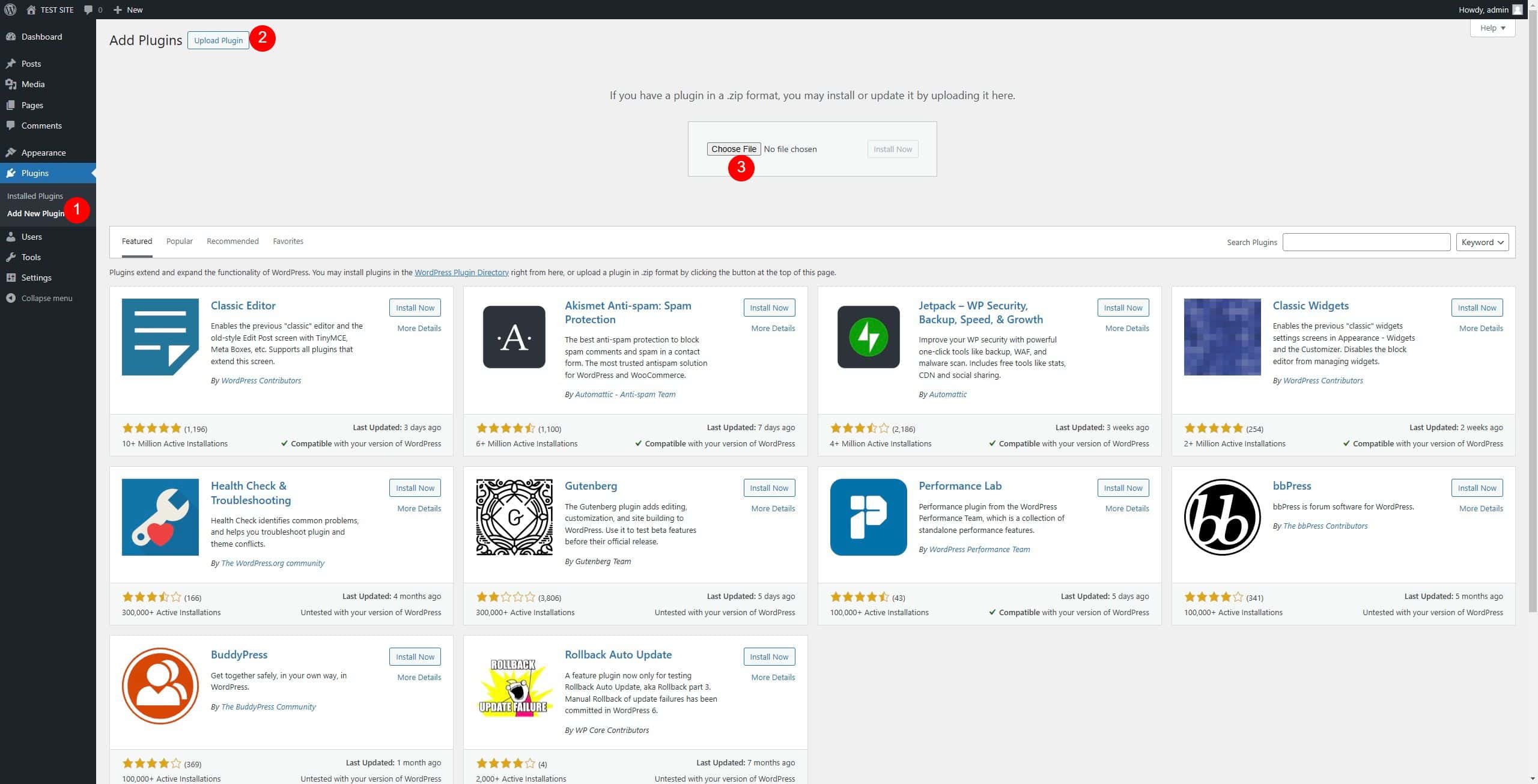
Go to Plugins > Add New Plugin section
In the next screen click the Upload Plugin button
Click the Choose File button, select the zip file “kinguinex.zip” downloaded when you bought the plugin and click Install Now.
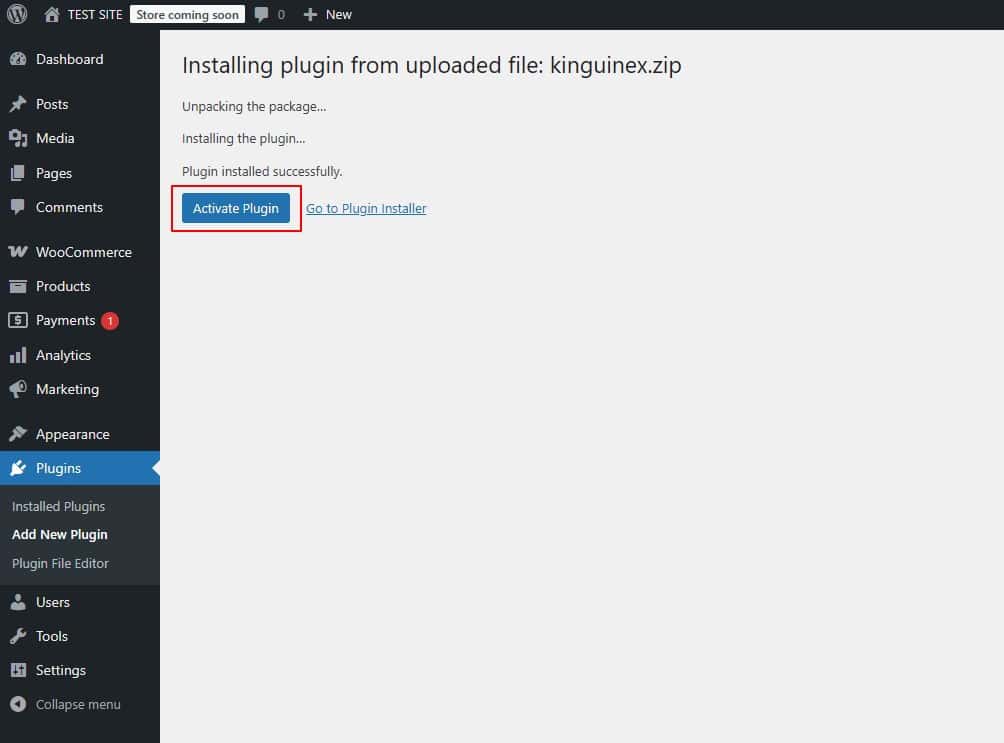
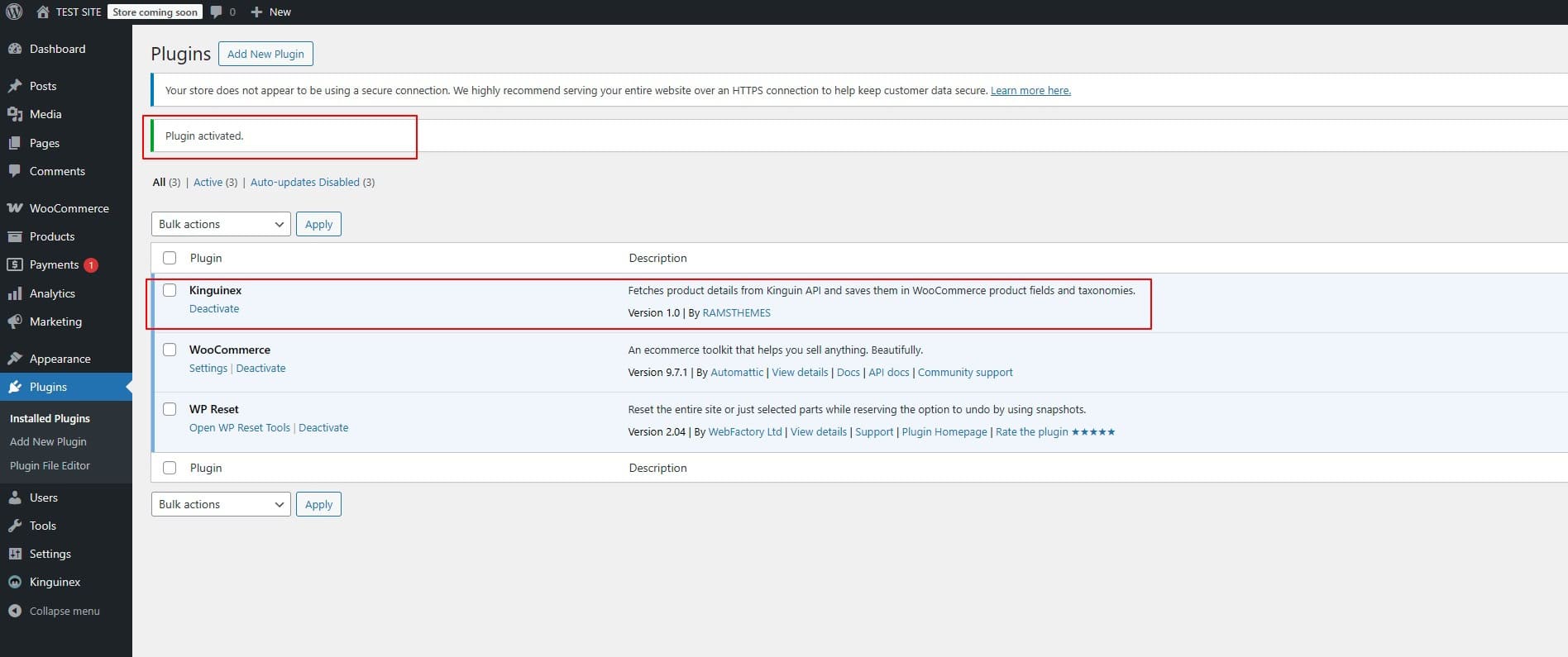
You can now activate the Plugin and start using it
Settings
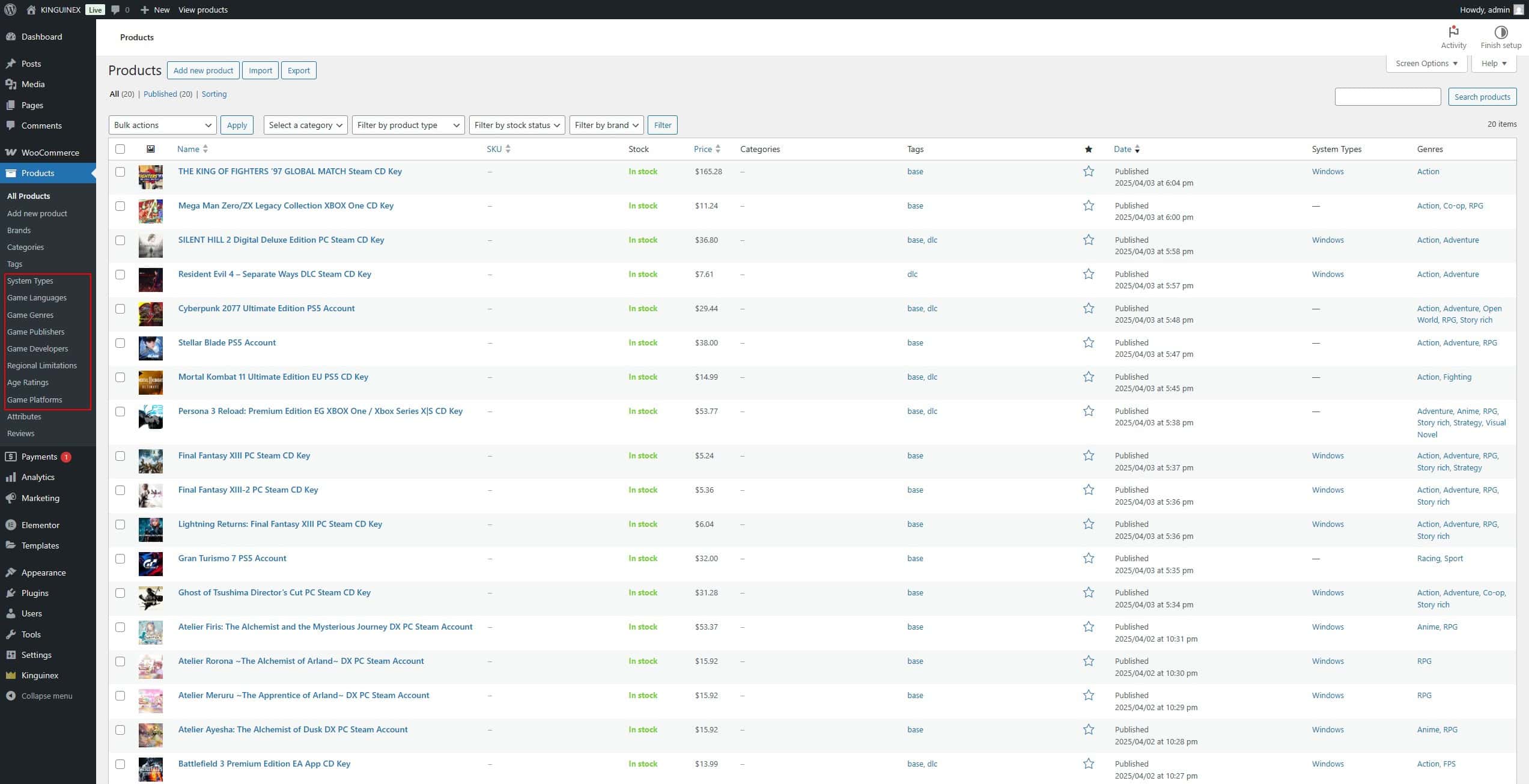
Plugin needs mandatory the WooCommerce plugin activated. After activating, you’ll see the Product post type from WooCommerce and new Custom Taxonomies and Custom Fields that are filled when you fetch data.
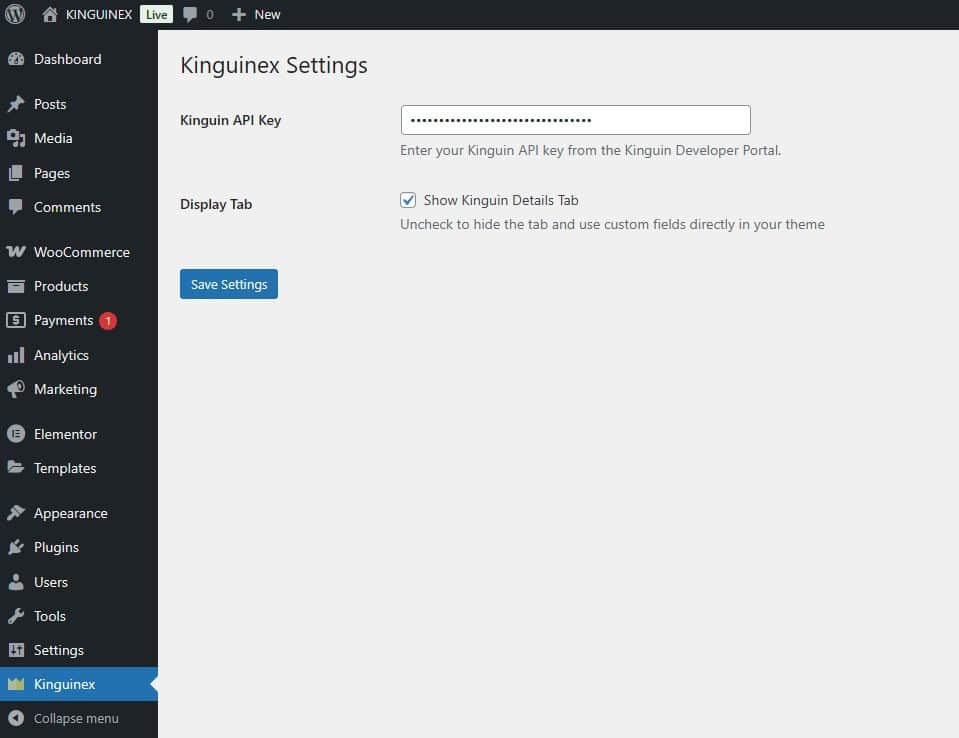
Plugin only has two settings:
- API KEY: paste here the API Key you get from Kinguin Developers Page
- Display Tab: enable or disable th product tab with data on frontend. Disable if you want to use the custom fields and taxonomy terms with any custom templates (Elementor or any Builder)
Operation
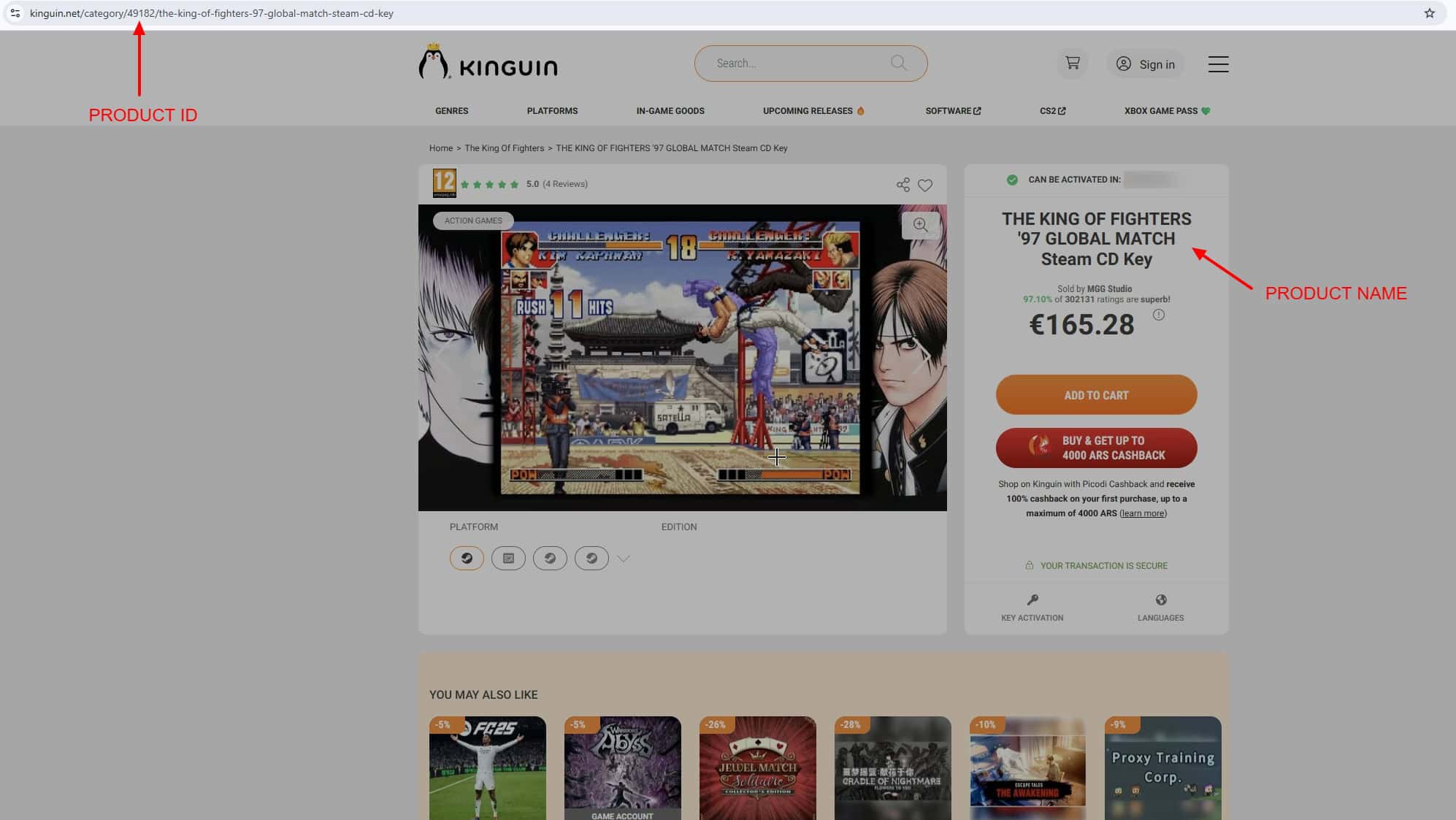
The search works by name or by ID (this is recommended for more precise content, since it can happen that several media have the same name). The data search based on name or ID uses the Kinguin Product data existing on the store page.
Example:
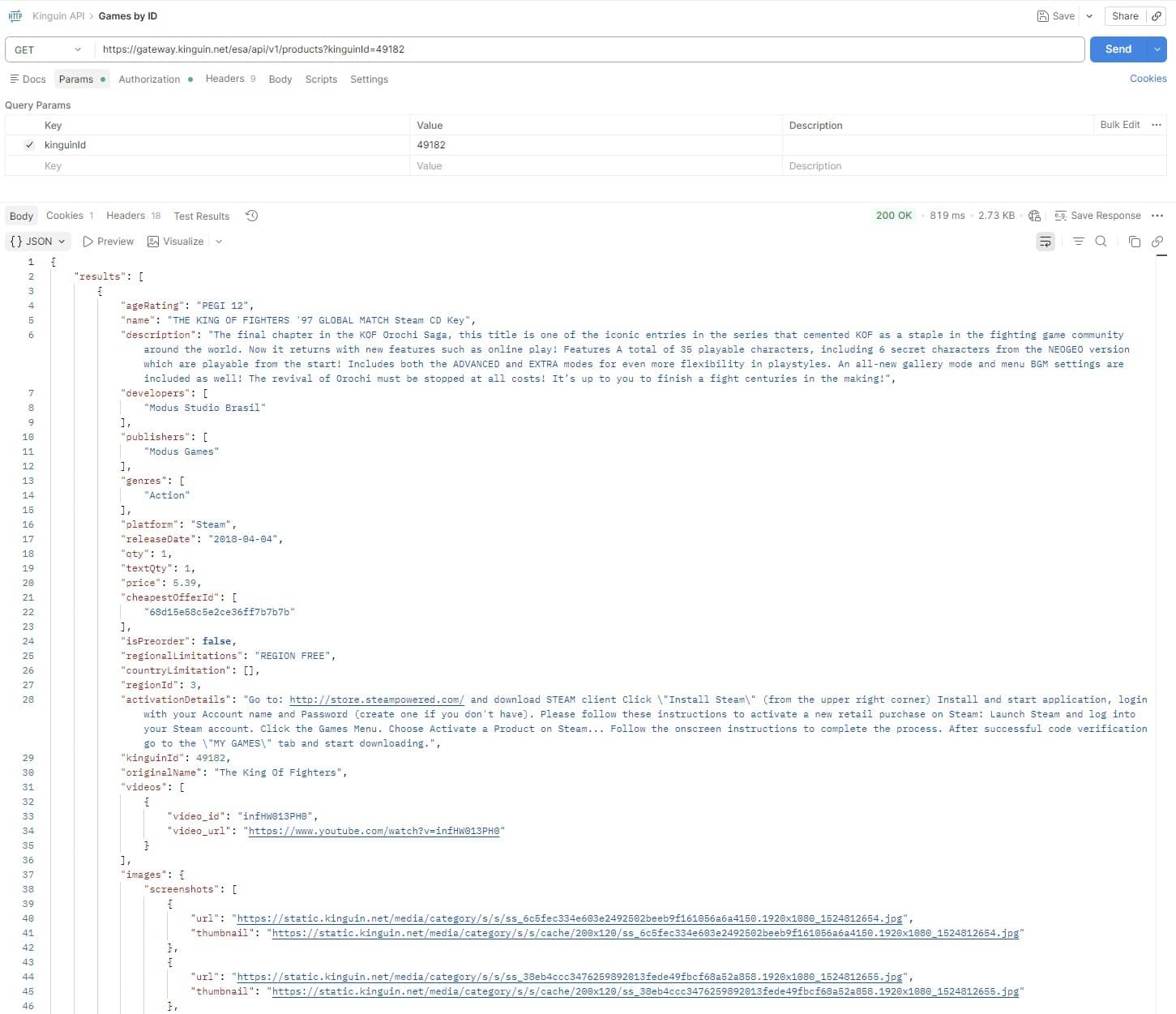
Which is the same present when testing the Kinguin API using POSTMAN.
Example:
You simply have to create any new product within what you want to publish and when entering, use the search box to trigger live search
Use the Product Name or ID on the search box
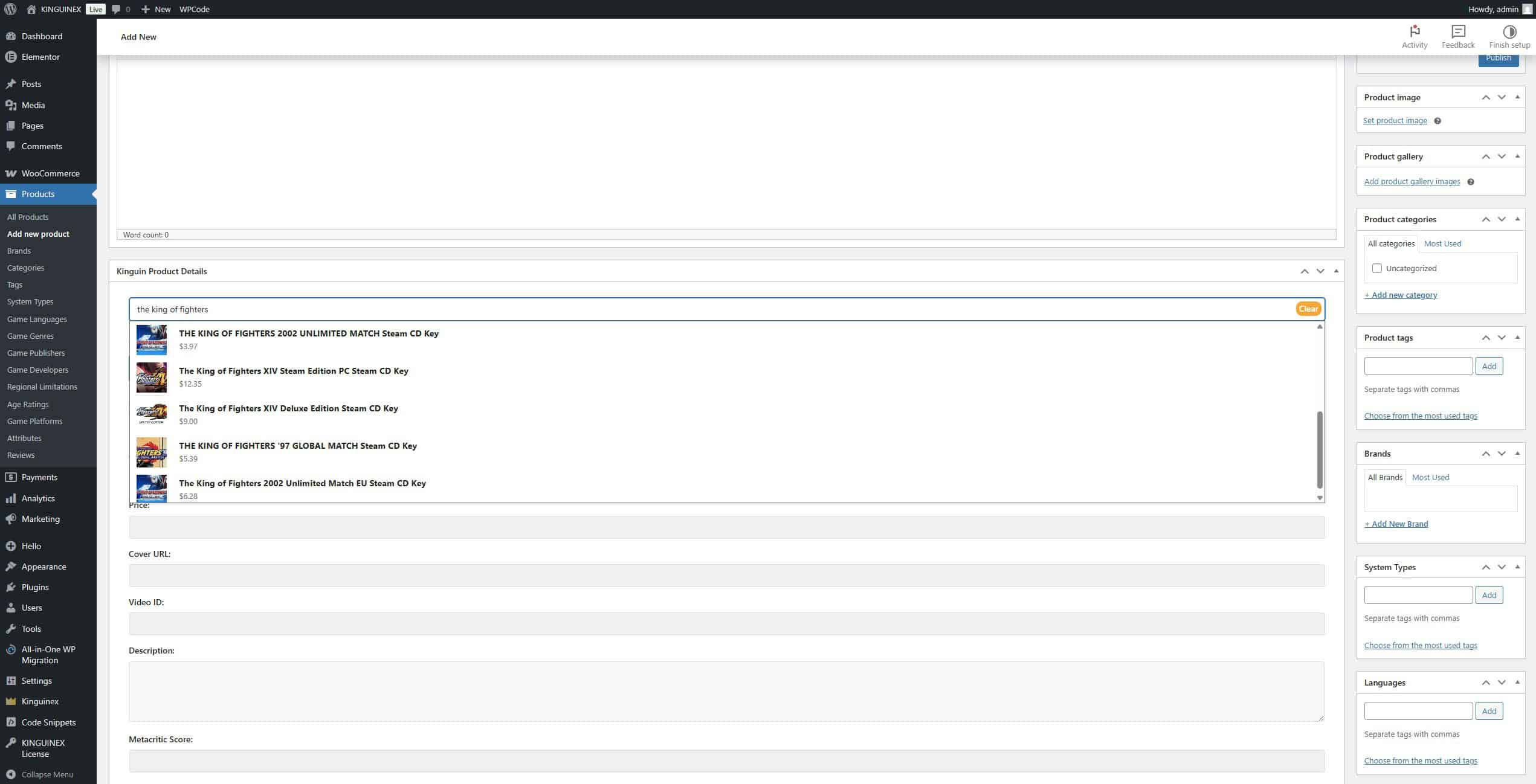
When select the product, the fields are filled with the data automatically, when it exists.
When you “save post”, it will automatically be saved in the fields. In the case of the poster and gallery, they will be automatically downloaded and assigned as “Featured image” and “Product Gallery” using the sideload function.
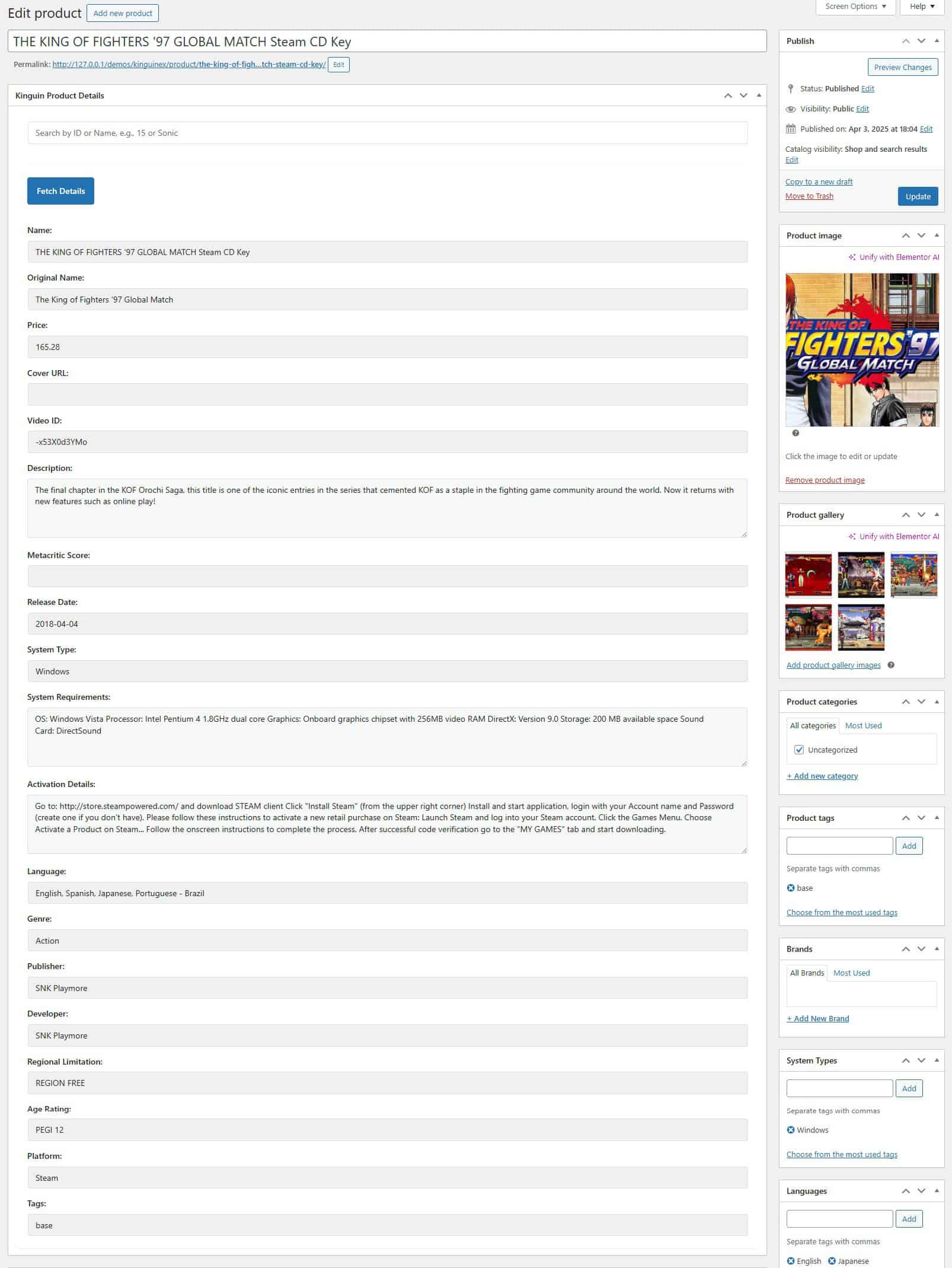
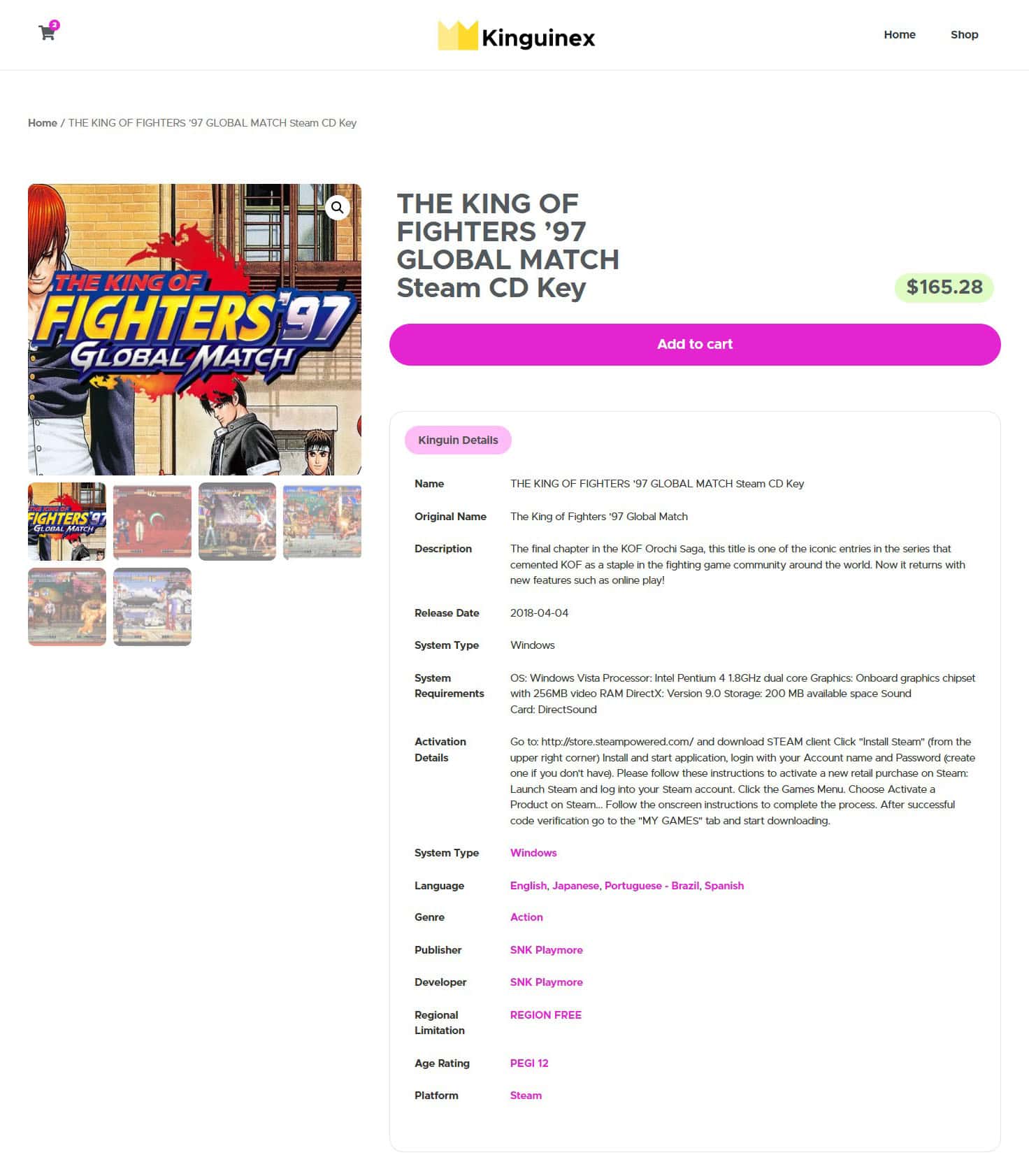
By saving all of these in custom fields, you can also reuse them, creating your own layouts based on the saved meta data.
And that’s it!
Demonstration example in video
The plugin works by creating a custom content that is automatically rendered on a new product tab. It already has predefined CSS styles to use on the frontend; all this allows it to work with practically any theme, although we recommend its use in themes using Elementor.
You can see detailed product samples in the product demo page*.
* Theme used in demo is a custom elementor template used only for Showcase purposes